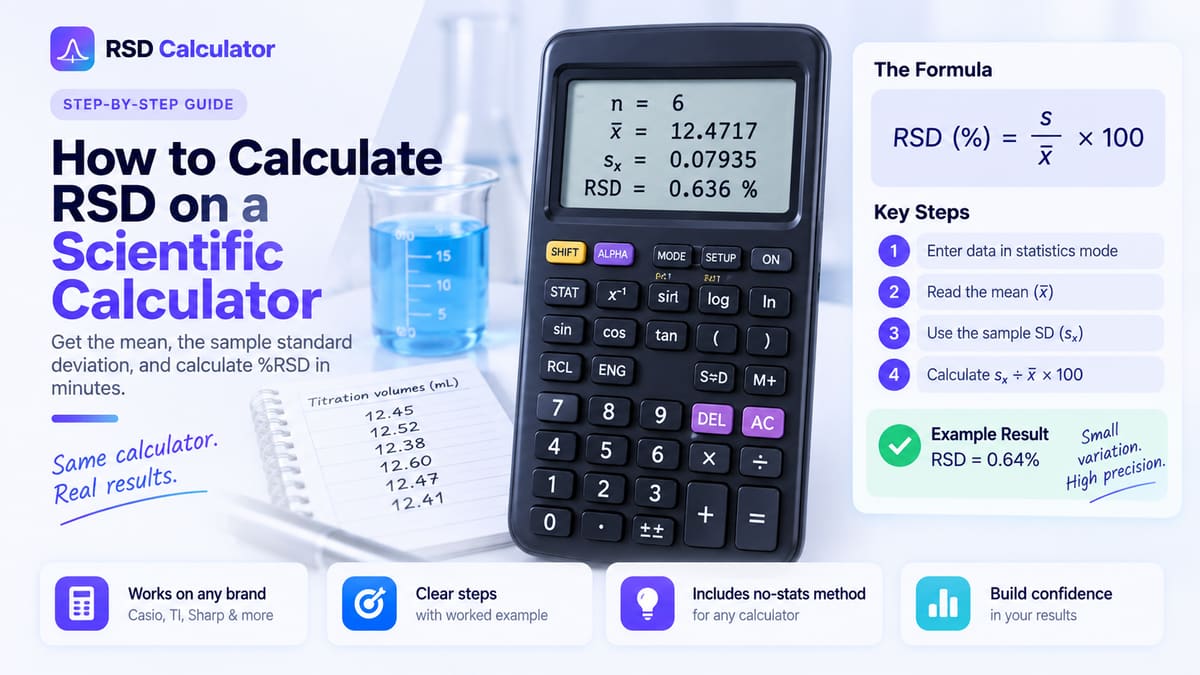
To calculate RSD on a Casio calculator, enter your data in single-variable statistics mode, recall the mean (x̄) and the sample standard deviation (sx), then work out sx ÷ x̄ × 100. For five nitrate results of 4.82, 4.91, 4.76, 4.88 and 4.85 mg/L, x̄ = 4.844 and sx = 0.05770615, so the RSD is 1.19%.
The key sequences differ a lot between models. The fx-991MS uses MODE and the M+ key, the fx-991EX uses MENU and OPTN, and the fx-991CW uses HOME, TOOLS and CATALOG. Every sequence below comes from Casio’s official user’s guides for each model.
Quick Comparison
| Step | fx-991MS | fx-991EX | fx-991CW |
|---|---|---|---|
| Open statistics | MODE MODE 1 (SD) | MENU, Statistics, =, 1 (1-Variable) | HOME, Statistics, OK, 1-Variable, OK |
| Clear old data | SHIFT MODE (CLR) 1 (Scl) = | OPTN 2 (Editor) 2 (Delete All) | TOOLS, Edit, Delete All |
| Enter a value | value, M+ (DT) | value, = | value, EXE |
| See the results | Recall one at a time | OPTN, 1-Variable Calc | OK, 1-Var Results |
| Where to type sx ÷ x̄ × 100 | Anywhere in SD mode, after AC | Statistical calculation screen | Statistics Calc screen |
The same user’s guide covers the fx-570MS and fx-100MS alongside the fx-991MS, the fx-570EX alongside the fx-991EX, and the fx-570CW alongside the fx-991CW. Other Casio families, such as the fx-991ES PLUS or fx-82AU PLUS, use different menus, so their sequences will not work on these models and vice versa.
The Formula and Which Standard Deviation to Use
All three models show two standard deviations:
| Newer label | Older fx-991MS label | Divides by | Use for RSD when |
|---|---|---|---|
| sx | σn-1 (xσn-1) | n − 1 | Replicates, lab data, any sample |
| σx | σn (xσn) | n | The data is the whole population |
The labels changed between editions of the fx-991MS manual. The original 2004 guide uses σn and σn-1, while the current second edition uses σx and sx. The keys did not change, so the same key sequence gives the sample value on every version.
For most RSD work, use sx. The choice between them is about what your data represents, not how many values you have. The sample vs population standard deviation guide explains it in more detail.
fx-991MS: Step by Step
The fx-991MS is the two-line model with a MODE key and no statistics editor. Values are added one at a time with the DT key, which is the M+ key in SD mode. Steps follow Casio’s fx-100MS/570MS/991MS user’s guide.
1. Enter SD mode
Press MODE MODE 1. The SD indicator appears on the display.
2. Clear the statistics memory
Press SHIFT MODE (CLR) 1 (Scl) =. Casio’s manual says to always start data input this way. Note that option 1 here is Scl, which clears statistics. The similarly named Mcl clears variables and the M memory instead.
3. Enter the data
Type each value and press M+:
4.82 M+ 4.91 M+ and so on for 4.76, 4.88 and 4.85.
After each entry the display shows the running count, n=. Check that it reaches 5. For a value that repeats, you can type the value, SHIFT , (;), the number of repeats, and then M+.
To review entries, use ▲ and ▼. Type a new value and press = to replace the one shown, or press SHIFT M+ (CL) to delete it. Press AC to leave the data display before doing anything else.
4. Recall the mean and standard deviations
Press SHIFT 2 (S-VAR) to open the statistics variables, then choose:
- 1 for x̄, then =: 4.844
- 2 for σx (σn on older units), then =: 0.051613951
- 3 for sx (σn-1 on older units), then =: 0.057706152
5. Calculate RSD
Combine the recalled values in one expression, so nothing is rounded:
SHIFT 2 3 ÷ SHIFT 2 1 × 1 0 0 =The result is 1.191291333, an RSD of 1.19%. For a population RSD, use 2 instead of 3 after the first S-VAR.
If you prefer to follow the manual’s recall steps exactly, recall sx on its own with SHIFT 2 3 =, then continue with ÷ 4.844 × 100 =. The calculator carries the full value of sx forward as the previous answer.
fx-991EX: Step by Step
The fx-991EX is a ClassWiz model with an icon menu and a spreadsheet-style Statistics Editor. Steps follow Casio’s fx-570EX/fx-991EX user’s guide.
1. Open 1-Variable statistics
Press MENU, highlight the Statistics icon and press =. Casio’s quick start guide notes that you can also press 6 from the main menu. On the Select Type screen, press 1 (1-Variable). The Statistics Editor appears with an x column.
2. Check the frequency column
If a Freq column is showing, turn it off unless you are entering a frequency table: press SHIFT MENU (SETUP), ▼, 3 (Statistics), 2 (Off). Changing this setting deletes the editor data, so do it before entering values.
3. Clear old data
If rows from a previous problem are still there, press OPTN 2 (Editor) 2 (Delete All).
4. Enter the data
Type each value and press =: 4.82 = 4.91 = 4.76 = 4.88 = 4.85 =. Use DEL to delete the row under the cursor if you make a mistake.
5. View all the results (optional)
Press OPTN 3 (1-Variable Calc) from the editor. The results screen lists x̄, Σx, Σx², σ²x, σx and s²x, then sx, n, min(x), Q₁, Med, Q₃ and max(x) as you scroll down.
6. Calculate RSD on the statistical calculation screen
Press AC. This does not leave Statistics Mode. It switches from the editor to the statistical calculation screen, where Casio’s manual says you can recall statistical values and “use the variables in calculations.”
- Press OPTN ▼ 2 (Variable) and choose sx.
- Press ÷.
- Press OPTN ▼ 2 (Variable) 1 (x̄).
- Press × 100 =.
The result is 1.191291333. If the answer ever appears in fraction or root form rather than as a decimal, press S⇔D.
Stay in Statistics Mode. Casio’s manual states that all Statistics Editor data is deleted when you exit Statistics Mode, switch between single-variable and paired-variable calculations, or change the frequency setting. If you press MENU and go to Calculate to do the division, the data is gone. Calculate the RSD on the statistical calculation screen instead.
fx-991CW: Step by Step
The fx-991CW is the newer ClassWiz CW model with HOME, OK, TOOLS, CATALOG and FORMAT keys. It has no MODE key, and menus are navigated with the cursor keys and OK. Steps follow Casio’s fx-570CW/fx-991CW online manual.
1. Open the Statistics app
Press HOME, select the Statistics app icon and press OK. Select 1-Variable and press OK. The Statistics Editor appears.
2. Check the frequency column
On the CW, the frequency setting is in the app’s TOOLS menu, not in SETTINGS. If a Freq column is showing, press TOOLS and select Frequency > Off, then press AC to return to the editor. As on the EX, changing this setting deletes the editor data.
3. Clear old data
Press TOOLS and select Edit > Delete All. The CW manual does not say whether data survives switching apps or turning the calculator off, so check for leftover rows every time.
4. Enter the data
Type each value and press EXE. The OK key does the same job. Cells display up to six digits, but the full value is stored.
5. View all the results (optional)
Press OK, select 1-Var Results and press OK. The list matches the EX: x̄, Σx, Σx², σ²x, σx, s²x, then sx, n, min(x), Q₁, Med, Q₃ and max(x).
6. Calculate RSD on the Statistics Calc screen
From the editor, press OK, select Statistics Calc and press OK. The manual describes this screen as the place to recall individual statistical values and use them in calculations.
- Press CATALOG and select Statistics > Mean/Var/Dev… > sx.
- Press ÷.
- Press CATALOG and select Statistics > Mean/Var/Dev… > x̄.
- Press × 100 EXE.
The result is 1.191291333. The CW has no S⇔D key. If a result is not shown as a decimal, press FORMAT and choose Decimal, or use SHIFT EXE (≈) to get a decimal result directly.
The Same Data on All Three Models
Because the arithmetic is identical, all three calculators should agree to the displayed digits:
| Statistic | Symbol | Nitrate example |
|---|---|---|
| Number of values | n | 5 |
| Mean | x̄ | 4.844 |
| Sample standard deviation | sx | 0.057706152 |
| Population standard deviation | σx | 0.051613951 |
| Sample RSD | sx ÷ x̄ × 100 | 1.19% |
| Population RSD | σx ÷ x̄ × 100 | 1.07% |
The gap between 1.19% and 1.07% shows why the sample or population choice needs to be stated with small data sets.
Check Your Keystrokes With Casio’s Own Example
The fx-991MS user’s guide works through the data set 55, 54, 51, 55, 53, 53, 54, 52 and gives x̄ = 53.375, sx = 1.407885953 and σx = 1.316956719. Entering the same eight values on any of the three models and calculating RSD should give:
If your x̄, sx and σx match the manual, your data entry and mode are correct, and any difference in RSD comes from the final division.
Entering Repeated Values as a Frequency Table
When the same value appears several times, you can enter it once with a count instead of typing it repeatedly. Take six results where 4.82 appears twice, 4.85 three times and 4.91 once.
| Model | How to enter the repeats |
|---|---|
| fx-991MS | 4.82 SHIFT , (;) 2 M+, then 4.85 SHIFT , 3 M+, then 4.91 M+ |
| fx-991EX | Turn the Freq column on in SETUP, enter 4.82, 4.85 and 4.91 in the x column and 2, 3 and 1 in the Freq column |
| fx-991CW | Turn Frequency on in the TOOLS menu, then fill the x and Freq columns the same way |
All three should report n = 6, x̄ = 4.85, sx = 0.032863 and σx = 0.03. The sample RSD is 0.032863 ÷ 4.85 × 100 = 0.68%. If n shows 3 instead of 6, the frequencies were not applied.
Only use a frequency table for genuinely repeated results. For replicate measurements, it is usually simpler and less error-prone to enter every value in order, because the list then matches your lab record line by line.
Reset and Data-Clear Mistakes
| Model | How to clear statistics data | When data is lost without warning |
|---|---|---|
| fx-991MS | SHIFT MODE 1 (Scl) = | Changing mode stops you from viewing or editing individual items |
| fx-991EX | OPTN 2 2 (Delete All) in the editor | Leaving Statistics Mode, switching 1-variable and 2-variable, changing the Freq setting |
| fx-991CW | TOOLS, Edit, Delete All | Switching 1-variable and 2-variable, changing the Frequency setting |
The most common problems are the opposite of losing data: values from yesterday’s problem still sitting in the calculator. On the fx-991MS this is invisible unless you check n. On the EX and CW, old rows show in the editor if you scroll up.
Common Mistakes on Casio Calculators
- Using another model’s sequence. Instructions written for the fx-991ES PLUS or fx-82 models do not match the EX or CW menus. Check which model a tutorial was written for.
- Picking σx instead of sx. The sample value is option 3 on the fx-991MS S-VAR menu, not option 2.
- Choosing by the number of values. Some tutorials suggest using one standard deviation above a certain count and the other below it. The real choice depends on whether the data is a sample or the whole population.
- Leaving the frequency column on. On the EX and CW, a visible Freq column only gives the right answer if every frequency is 1. An accidental entry there counts that value several times.
- Typing rounded values. Dividing 0.0577 by 4.84 gives 1.192%, not 1.191%. Recall the stored sx and x̄ instead.
- Doing the division outside Statistics Mode on the EX. Leaving the mode erases the data.
- Forgetting Scl on the fx-991MS. Without it, new values are added to the old ones.
Display Settings for Reporting
To show the RSD to two decimal places, use the Fix setting. On the fx-991MS, press MODE repeatedly until the Fix/Sci/Norm screen appears, then press 1 (Fix) and the number of decimal places. On the fx-991EX, press SHIFT MENU (SETUP) 3 (Number Format) 1 (Fix). On the fx-991CW, the Number Format option is under SETTINGS, Calc Settings. Fix only changes the display; the calculator keeps full precision internally.
Verify Your Result
Enter the same values in the RSD Calculator, choose Sample (n − 1), and compare the mean, standard deviation and %RSD with your Casio. The calculator shows each step of the working, so you can see exactly where two results diverge.
For the general method on any brand, including calculators without a statistics mode, see How to Calculate RSD on a Scientific Calculator.
Casio and ClassWiz are trademarks of Casio Computer Co., Ltd. This guide is independent and is not affiliated with or endorsed by Casio.
Frequently Asked Questions
Does the Casio fx-991EX have an RSD or coefficient of variation button?
No. The fx-991EX, fx-991MS and fx-991CW all report the mean, sums, variances and standard deviations, but none has an RSD or CV function. You calculate RSD yourself as sx ÷ x̄ × 100, using the stored values so nothing is rounded.
Should I use sx or σx on a Casio calculator?
Use sx, the sample standard deviation, for replicate measurements and most experimental data. Use σx, the population standard deviation, only when your data covers the whole population. Older fx-991MS units label these σn-1 (sample) and σn (population), but the keys are the same.
Where is SD mode on the fx-991CW?
The fx-991CW has no MODE key. Press HOME, choose the Statistics app icon, press OK, then choose 1-Variable and press OK. This opens the Statistics Editor, which replaces the SD mode of older models.
Why did my fx-991EX lose my data?
According to Casio's manual, the fx-991EX deletes all Statistics Editor data when you exit Statistics Mode, switch between single-variable and paired-variable calculations, or change the frequency setting. Do the RSD calculation on the statistical calculation screen without leaving the mode.
Why is my Casio RSD different from Excel?
Usually one result uses the sample standard deviation and the other uses the population one. Casio's sx matches Excel's STDEV.S, and σx matches STDEV.P. Also check that no old data was left in the calculator and that the frequency column is off.